How to Make a Code Block in Discord (Easy Guide)

Discord is a great app for chatting, but sometimes you want your text to stand out. One of the best ways to do this is by putting your text inside a dark grey box. In Discord, this box is called a code block.
This guide will teach you exactly how to make these boxes in seconds, even if you have never used Discord formatting before.
How to make a code block in Discord?
To make a code block in Discord, type three backticks (```) before your text and three backticks after it. When you send the message, your text will appear inside a dark grey box.
The Two Types of Code Blocks
There are two types of code blocks in Discord: Inline Code for small snippets, and Multi-Line Code Blocks for paragraphs.
To make them, you will use the backtick key ( ` ). On most keyboards, this is located in the top-left corner under the Esc key.
1. Inline Code
Use this when you only want to highlight a single word or a short sentence inside a normal message.
How to do it: Type just one backtick before and after your text.
Copy and paste this example into Discord to test it:
Please read the `rules` before posting.
2. Multi-Line Code Blocks
Use this when you want to put a whole paragraph or multiple lines of text inside a large box.
How to do it: Type three backticks to open the box, type your text, and type three backticks to close it.
Copy and paste this example into Discord to test it:
```
This is my first line of text.
This is my second line of text.
```
Syntax Highlighting and Colors
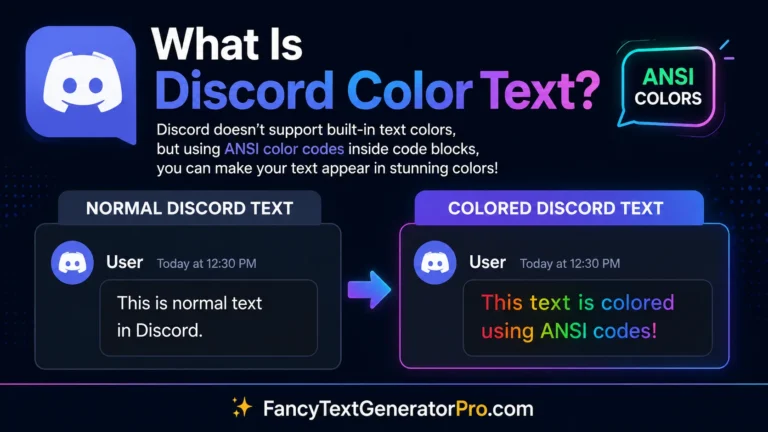
By default, text inside a code block is grey. However, Discord supports syntax highlighting. This means you can trick Discord into applying vibrant colors to your text!
Want to color your text?
Now that you know how to make a code block, you can add colors to it! Check out our Discord Code Block Colors Guide to learn how to make your text red, green, yellow, and blue!
More Discord Formatting Guides
Ready to learn more? Check out our complete series on Discord formatting below.