How to Color Text in Discord: The Beginner’s Guide
Sending a standard chat message in Discord is simple, but if you want to grab the attention of your server, you need to know how to stand out. Learning how to color text in Discord is the first step toward mastering server formatting, creating clear announcements, and organizing your community.
The Quick Answer: Changing Text Color
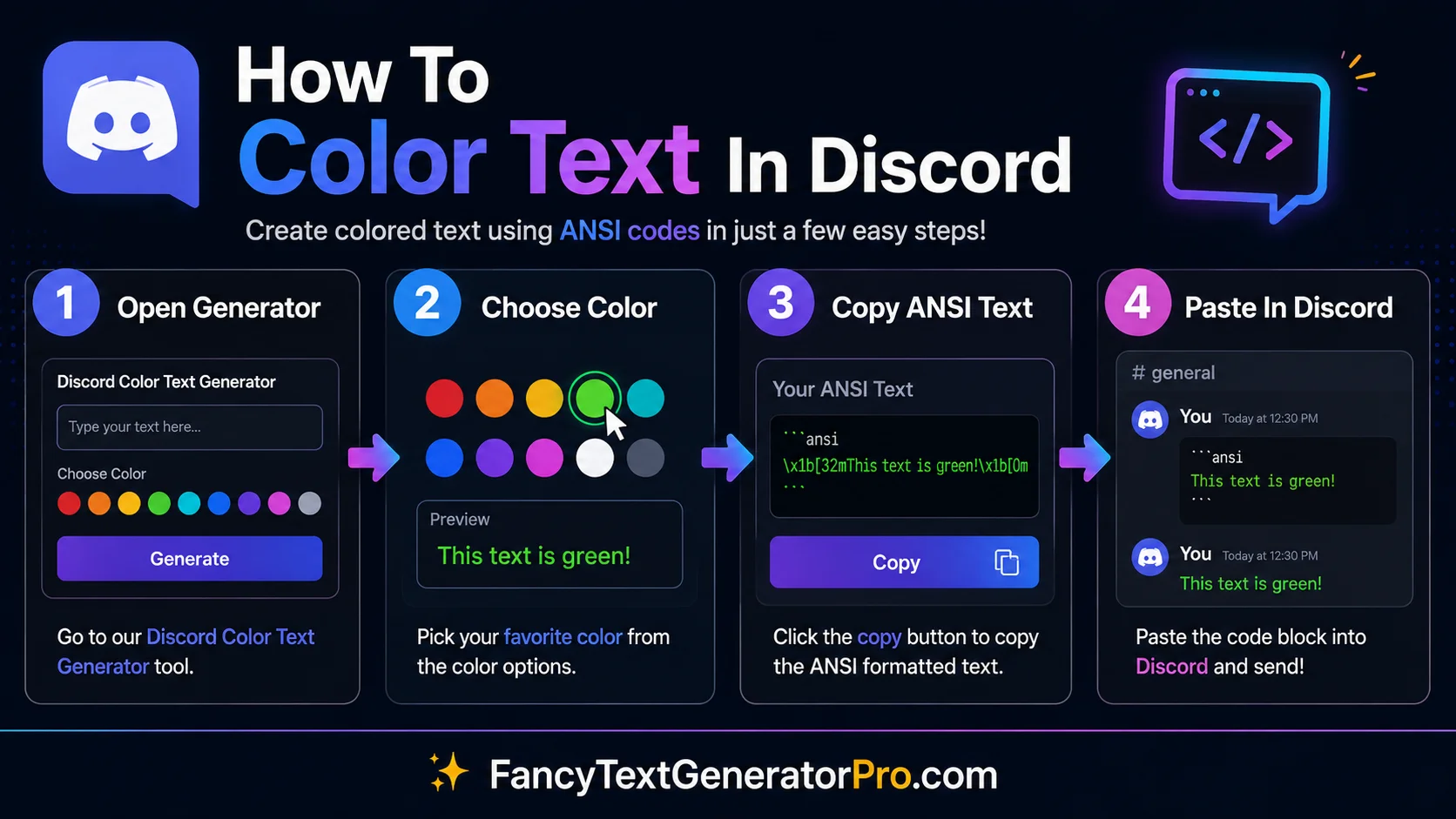
To change text color in Discord, you must use a Markdown code block paired with a specific syntax highlighting language.
- Step 1: Type three backticks (
```) to start a code block. - Step 2: Immediately type a syntax language name (like
difforcss) without any spaces. - Step 3: Press Shift+Enter to drop to a new line, type your text, and close the block with three more backticks (
```).
If you need a complete overview of all formatting methods, read our Discord Color Text Guide.
Understanding Discord’s Formatting Engine
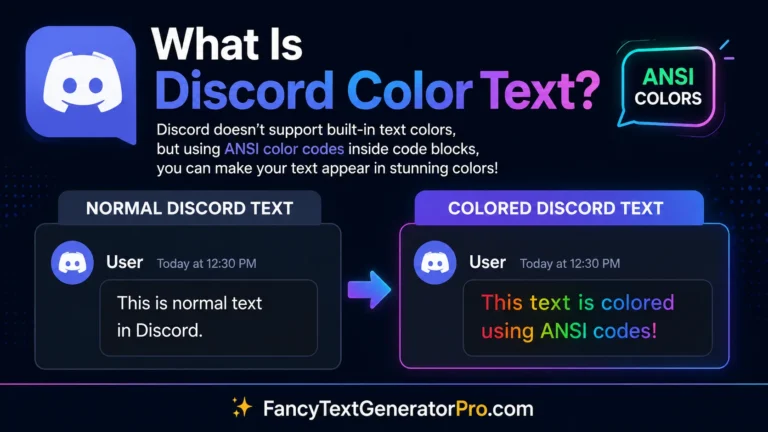
If you look through the Discord app, you won’t find a highlighted color palette or a rich-text toolbar. This is because Discord uses a lightweight markup language called Markdown to format chat messages. By default, Markdown lets you make text bold using asterisks or italicized using underscores.
However, to access actual colors, you have to use a hidden feature intended for programmers: Syntax Highlighting. When developers share code (like Python or HTML) in Discord, a system called highlight.js automatically colors different parts of the code to make it readable. By pretending to write code, we can trick this system into coloring regular text.
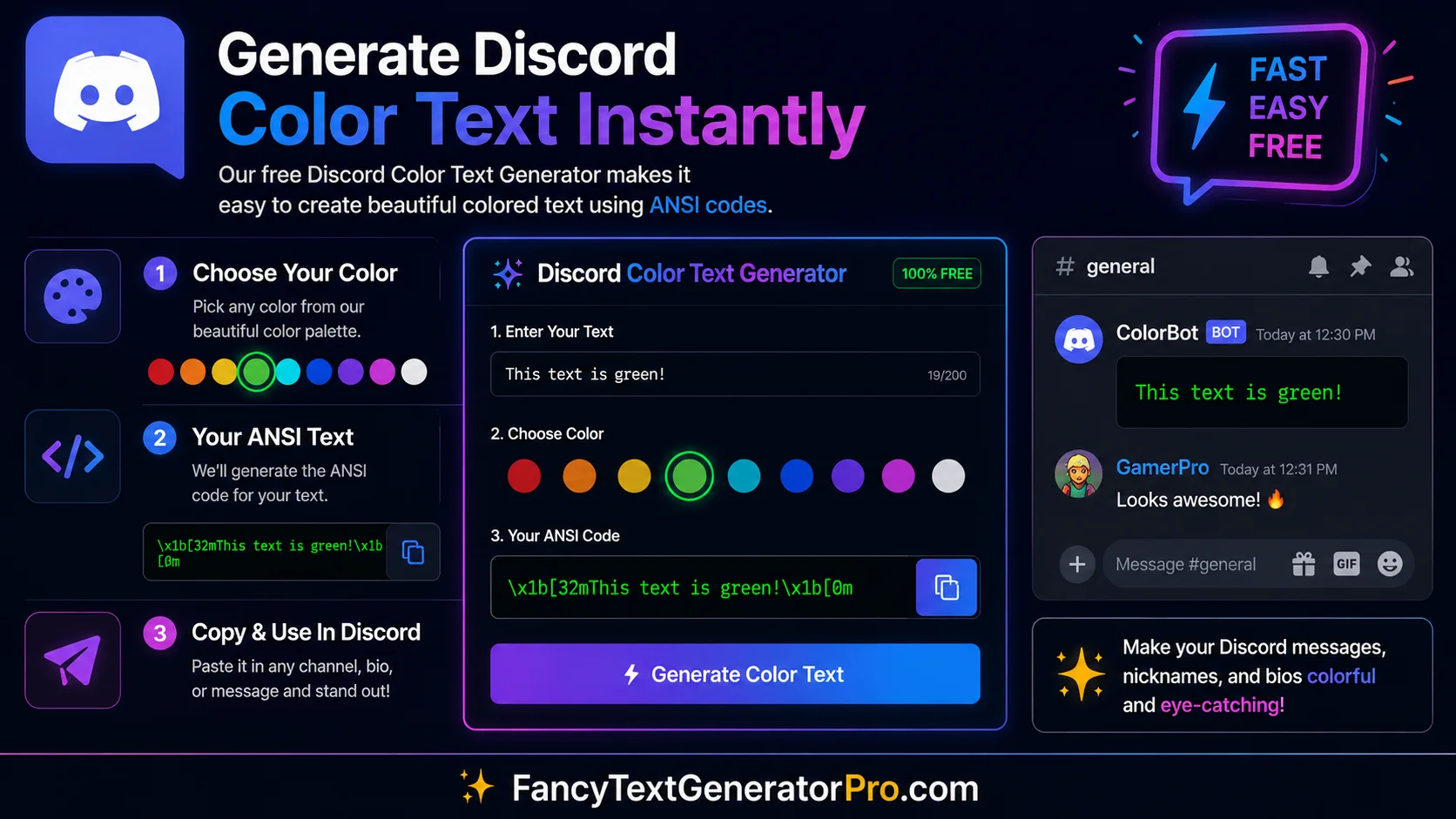
Discord text formatting relies on Markdown, code block formatting, and syntax highlighting. Many users also refer to these colored messages as Discord ANSI colors because modern Discord color formatting is powered by ANSI escape sequences inside code blocks.
What are Code Blocks and Backticks?
The key to unlocking this feature is the backtick symbol (`). This is not an apostrophe (') or a quotation mark ("). On a standard US keyboard, the backtick key is located in the top-left corner, right under the Escape key, sharing the same button as the tilde (~).
Typing one backtick on each side of a word creates a single-line code block. But to use syntax colors, you must use a multiline code block, which requires three backticks (```) to open and close.
Step-by-Step: Writing Your First Colored Message
Let’s walk through the exact keystrokes required to send your very first red text message using the diff language syntax.
- Open any Discord chat channel where you have permission to send messages.
- Type three backticks:
``` - Directly next to them, type the word:
diff - Hold the Shift key and press Enter. This drops you to a new line without sending the message.
- Type a minus sign (
-), followed by a space, and then your message:- This text will be red! - Press Shift + Enter again to drop to a new line.
- Type three more backticks to close the block:
``` - Press Enter to send your message.
Once you understand this process, you can use the same method to create green, yellow, and other syntax highlighted Discord messages.
The Best Basic Colors to Start With
Different syntax languages trigger different colors. While there are dozens of complex combinations, here are the three easiest colors to start using right away for community management and announcements:
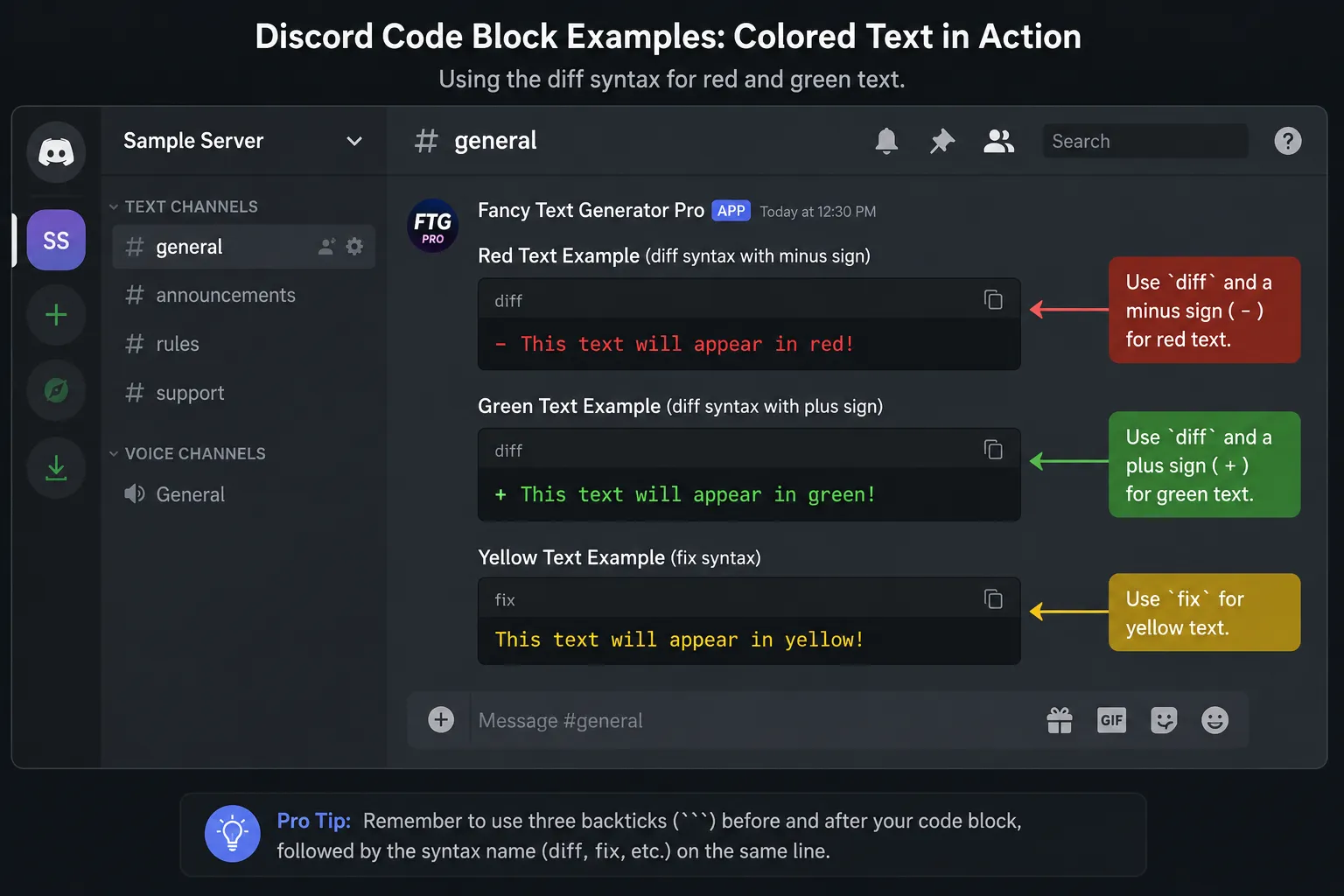
Red Text (The diff syntax)
Perfect for warnings, rule violations, or urgent server alerts. Note: you must include the minus sign!
```diff
- This text will appear in red
```
Green Text (The diff syntax)
Great for positive announcements, successful events, or approved status updates. Note: you must include the plus sign!
```diff
+ This text will appear in green
```
Yellow Text (The fix syntax)
Ideal for highlighting important server information or neutral alerts. No special symbols required before your text!
```fix
This text will appear in yellow
```
Common Mistakes Beginners Make
If your text is still showing up as standard white or gray, you likely ran into one of these common formatting errors:
- Using the wrong apostrophe: Make absolutely sure you are using backticks (
`), not standard single quotes ('). - Forgetting Shift+Enter: If you press Enter without holding Shift, Discord will send the incomplete message immediately.
- Missing the Trigger Symbol: Some languages, like
diff, require a specific symbol (like a-or+) before the text to trigger the color. If you forget the symbol, the color won’t work. - Mobile Formatting: While Discord mobile supports seeing these colors, typing them on a phone keyboard can be tricky because the backtick key is often hidden in a secondary symbol menu.
Advanced Discord Color Formatting
Now that you know the mechanics of how to color text in Discord using code blocks and basic syntax highlighting, you are ready to expand your palette.
To see every single color available through Markdown syntax, check out our massive Discord Color Codes Guide.
Or, if you want to skip the limitations of basic syntax and learn how to stack background colors and format text freely, return to our primary Comprehensive Guide to Discord Color Text.
If you want to understand how ANSI escape codes work behind Discord’s color system, read our Discord ANSI Colors Explained guide.
Frequently Asked Questions
How do you change text color in Discord?
To change text color in Discord, use a code block with a syntax highlighting language such as diff, css, or fix.
What is the backtick key in Discord?
The backtick (`) key is located below the Escape key on most keyboards and is used to create code blocks.
Does Discord support colored text on mobile?
Most Discord color formatting works on both desktop and mobile devices. However, creating code blocks and ANSI formatted messages is generally easier on desktop.
Why isn’t my Discord text changing color?
The most common causes are using the wrong symbol, forgetting the trigger character, or not closing the code block correctly.
Continue Learning Discord Formatting
- Discord Color Text Guide
- Discord Color Codes Guide
- Discord ANSI Colors Explained
- Discord Code Block Colors