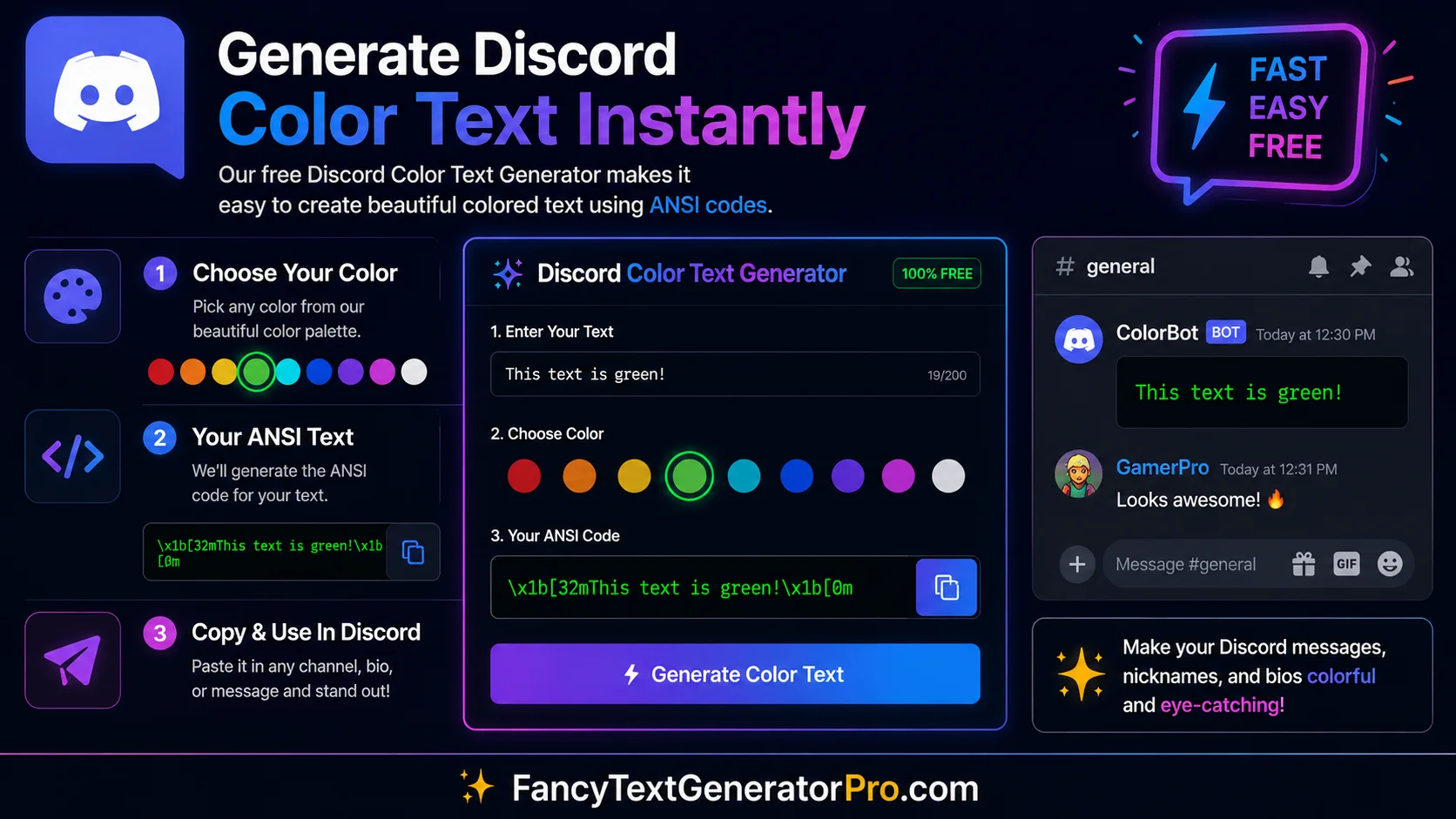
The Ultimate Guide to Discord Color Text
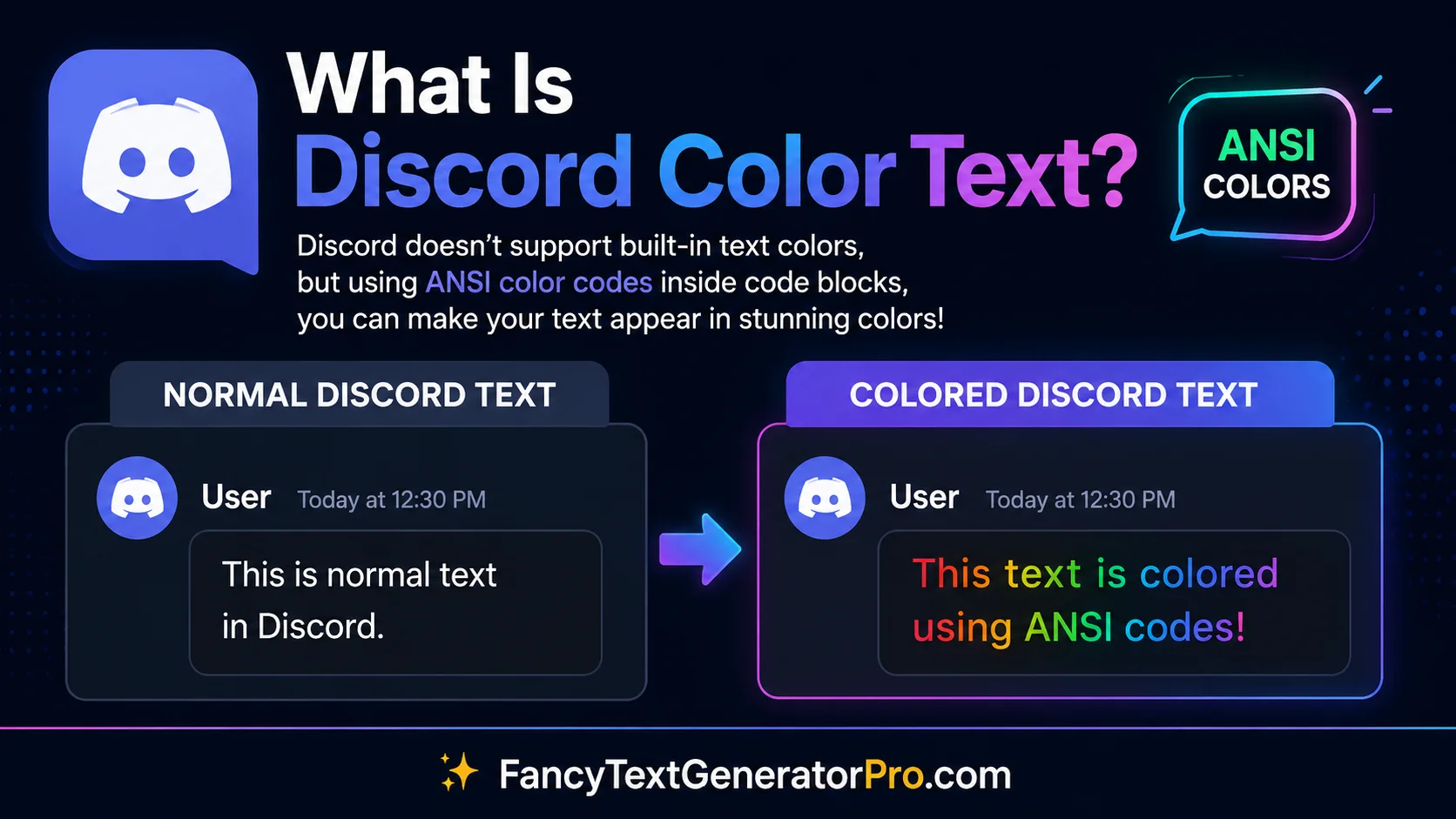
If you’ve ever spent time in a popular Discord server, you have probably noticed users sending beautifully formatted messages with bright colors, highlighted backgrounds, and structured code blocks. You might be wondering: “How do I change text color in Discord?”
Unlike traditional word processors or social media platforms, Discord doesn’t have a simple “color picker” button or a native rich-text editor for chat messages. Instead, the platform relies on hidden formatting engines that advanced users leverage to make their messages pop. By utilizing a system of ANSI Escape Codes and specific syntax highlighting languages through Markdown code blocks, anyone can transform standard white text into vibrant, eye-catching announcements.
But why go through the effort of learning to format Discord color text? For community managers, moderators, and server owners, standing out in a fast-paced chat is critical. Highlighting important server rules, creating unmissable event reminders, or organizing developer logs can dramatically improve how your community consumes information. Whether you are managing a massive gaming community on Discord Desktop or coordinating a small team via Discord Mobile, utilizing colored text ensures your most critical updates are never buried under a wall of generic messages.
This formatting magic is made possible by two primary systems. The first is Discord’s use of Markdown, specifically code blocks, which trigger a syntax highlighting engine called highlight.js. By specifying a “language” at the start of a code block, you can force the engine to color text based on coding syntax rules. The second, and far more powerful method, is using ANSI escape codes—a standard originally designed for terminal formatting in command-line interfaces. ANSI codes give you precise control over both foreground colors and background colors simultaneously.
In this comprehensive pillar guide, we will break down exactly how Discord text formatting works from the ground up. You will learn the mechanics behind code blocks, the exact syntax needed for various colors, and how to master the advanced ANSI system. We will also point you to our specific, detailed tutorials for deep-diving into every aspect of Discord aesthetics. By the end of this guide, you will be formatting like a pro—and if you prefer to skip the coding entirely, we will show you how to generate these colored messages instantly.
1. How to Color Text in Discord (The Basics)
At its core, changing your text color involves using three backticks (```) to create a multiline code block, followed immediately by a specific syntax language identifier (like ansi, diff, or css). This essentially tricks Discord’s markdown rendering engine into highlighting your standard text with specific colors, believing it is formatting source code.
While the technical execution is simple, the practical applications are massive. Server owners frequently use this basic formatting to create high-visibility server announcements or to clearly delineate sections within a rules channel. For instance, using the diff syntax will turn your text red if you use a minus sign, or green if you use a plus sign. A moderator might use red text to issue a strict warning, while using green text to announce a successful community event or a new server perk.
Developers and bot creators also rely heavily on these fundamental text colors to format patch notes, error logs, and system updates. By assigning specific colors to different types of information, they significantly enhance readability, ensuring that critical alerts immediately catch the eye of the community.
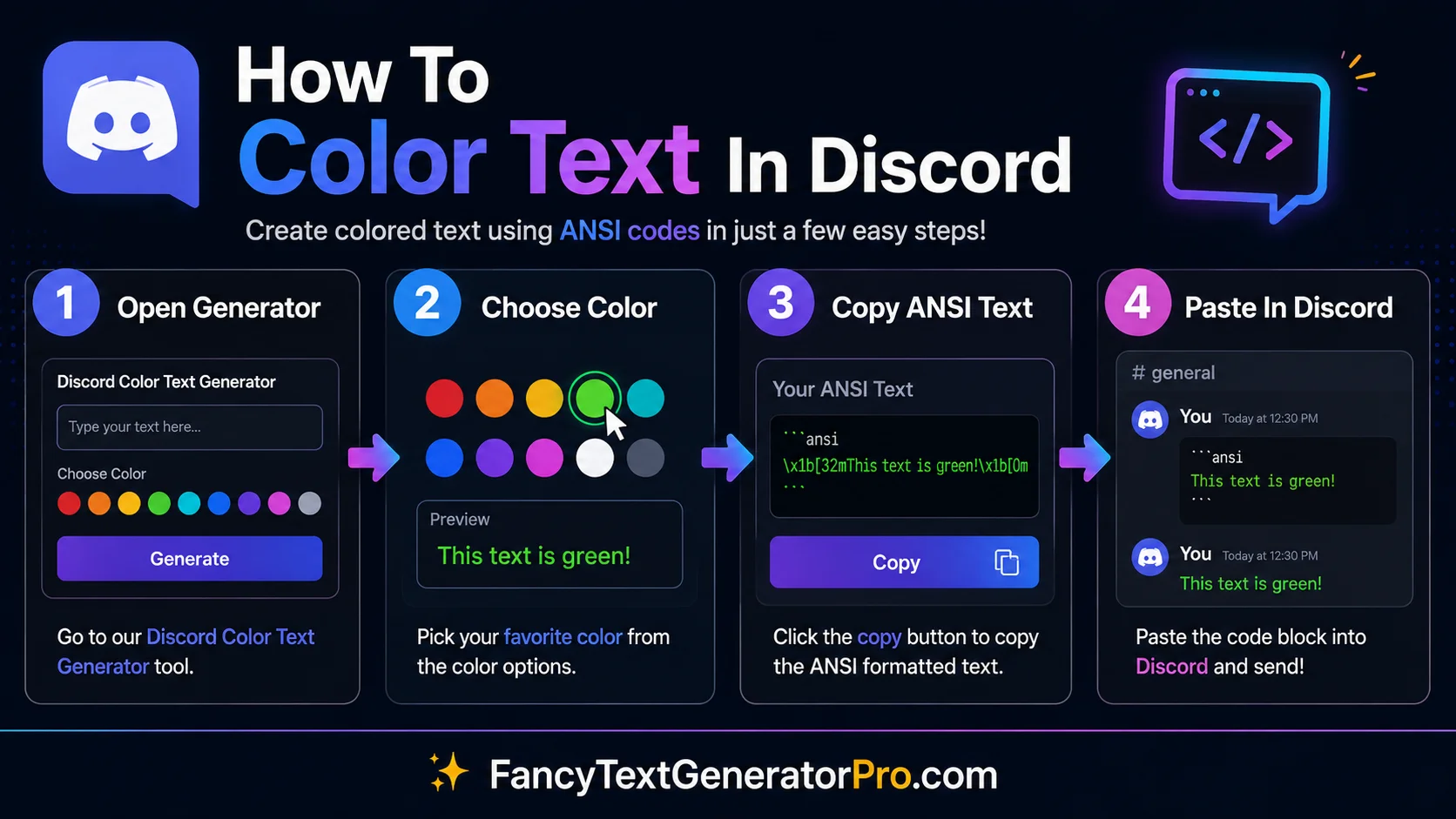
How to Color Text in Discord
Ready to send your first colored message? Read our step-by-step tutorial on how to use code blocks and markdown to instantly format your chat messages.
Read the Full Tutorial →2. Discord Color Codes Guide
Not all colors are created equal when it comes to Discord text formatting. Depending on the specific syntax highlighting language you use, you can unlock entirely different palettes including vibrant shades of red, orange, yellow, green, cyan, and blue. Knowing exactly which code block language produces which color is the secret to advanced server formatting.
It is important to understand the fundamental difference between standard syntax colors and ANSI colors. Syntax highlighting was originally integrated into Discord to help programmers share readable code. For example, the css language highlights certain properties in green, while the fix language turns text yellow. These languages are rigid—you cannot choose the exact hex code; you simply borrow the color assigned to that specific syntax keyword.
Because you are essentially tricking the system by using programming languages for aesthetic text formatting, a common mistake new users make is improper spacing or missing punctuation. If you use the yaml syntax to get cyan text, but forget to add the required quotation marks, the formatting will fail completely. To help you navigate these quirks, we have mapped out exactly what triggers each hue.
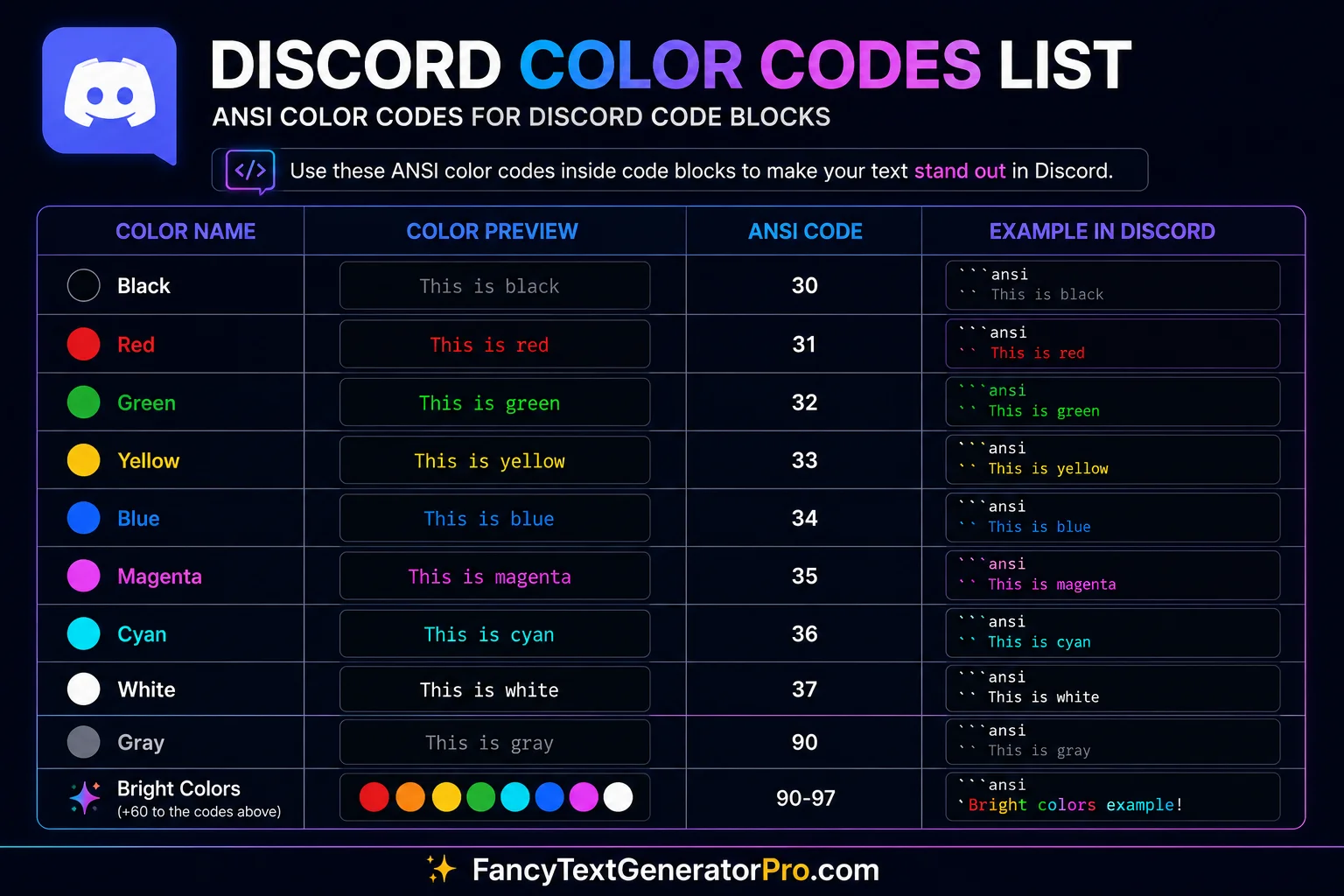
Discord Color Codes Guide
Get the ultimate cheat sheet. We have compiled a massive list of every single syntax highlighting color available in Discord and the exact code needed to trigger it.
View the Color Codes Cheat Sheet →3. Discord ANSI Colors Explained
In late 2021, Discord officially added support for ANSI escape codes. This update was an absolute game-changer for community managers and formatters. Instead of relying on the rigid, hacky syntax tricks of standard code highlighting, ANSI formatting brought terminal-level styling directly into the chat interface.
To understand why this is so powerful, you need to understand what ANSI actually is. ANSI (American National Standards Institute) escape sequences are standard codes originally designed decades ago for terminal formatting in text-based command line interfaces (CLI). When you open up a command prompt on a server and see colored text alerting you to an error, that is driven by ANSI escape codes.
Discord integrated this system to give developers better tools for displaying system logs and terminal outputs directly within the app. However, creative users quickly realized that this system allowed for unprecedented customization. Unlike basic Markdown syntax highlighting—which forces you to rely on specific keywords—ANSI formatting allows you to apply colors to any plain text string.
The true power of ANSI lies in its dual-layer control. It gives you explicit command over both Foreground Colors (the color of the text itself) and Background Colors (the highlighted box behind the text). You can even stack these commands to create bold, underlined text with a blue foreground and a white background simultaneously within the same code block.
At first glance, ANSI codes can look intimidating compared to simple Markdown. However, they are simply a standard way to instruct the Discord engine to format the following text with specific styles and foreground colors. Once you learn the basic formula, you unlock a level of server customization that standard Discord text formatting simply cannot match.
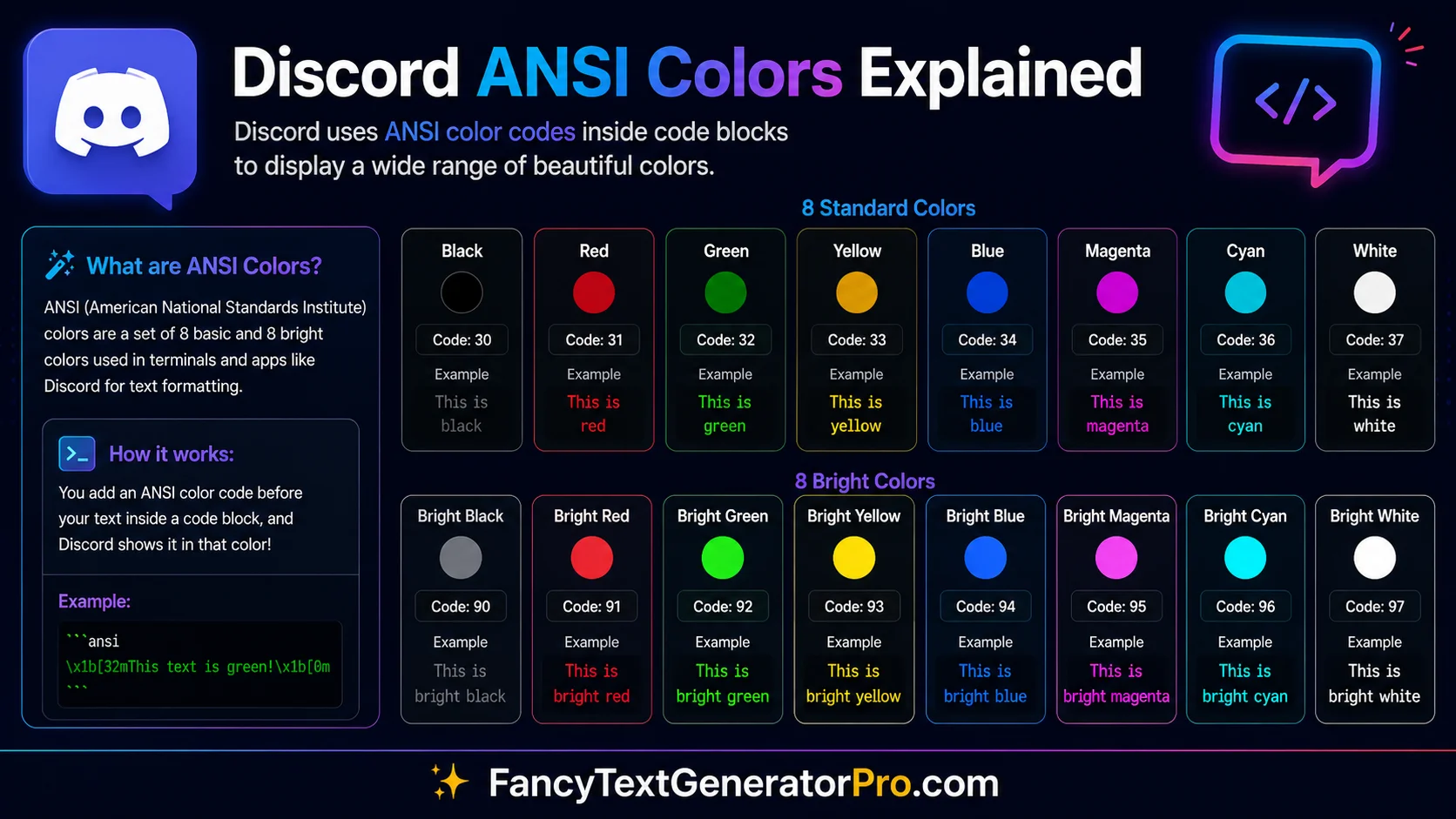
Discord ANSI Colors Explained
Master the ANSI system. Learn how to combine format codes to create bold, underlined, and fully color-customized text blocks.
Master ANSI Formatting →4. Discord Code Block Colors
Beyond simple single-line text colors, Discord’s highlight.js engine allows you to style massive, multiline code blocks. This is incredibly useful for structuring large amounts of information, such as comprehensive server rules, major announcements, and detailed developer logs, ensuring that your embedded messages always look pristine and organized.
For community administrators, multiline code blocks are a staple in announcement channels. By wrapping an entire update in a colored block, it creates a visual boundary that separates official server news from general chat. In support channels, bot documentation, and developer communities, code block colors are absolutely essential. They allow developers to share snippets of Python, JavaScript, or HTML with perfect syntax highlighting, making troubleshooting and collaboration significantly easier.
When using large code blocks, the best practice is to maintain high contrast and readability. Overusing bright, aggressive colors can cause eye strain for your community members. Instead, stick to a consistent formatting theme—for example, using dark background ANSI blocks for standard rules, and reserving bright red or yellow highlights exclusively for critical warnings.
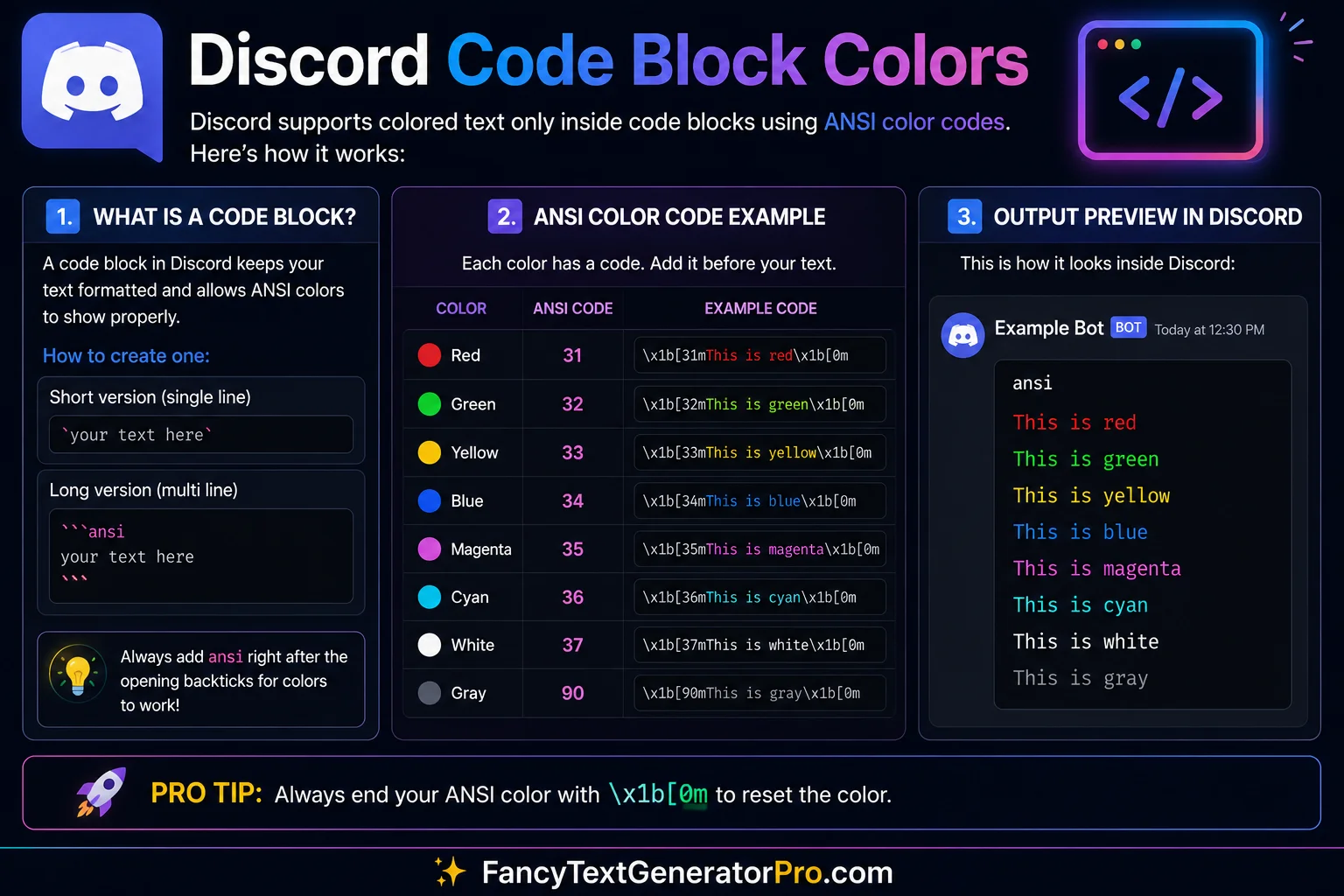
Discord Code Block Colors
Discover how to utilize multiline code blocks to structure your server rules, announcements, and developer logs with perfect color contrast.
Learn Code Block Styling →Common Troubleshooting & Mistakes
When working with Discord formatting, things don’t always go as planned. If your text isn’t coloring correctly, it is usually due to one of these common pitfalls:
- Missing Backticks: The most frequent error is forgetting to use exactly three backticks (
```) to open and close your code block. Standard single quotes or apostrophes will not work. - Wrong Syntax Language: Using
ymlinstead ofyamlormarkdowninstead ofmdcan completely break your highlighting. - ANSI Formatting Errors: ANSI requires precise brackets, semicolons, and the lowercase ‘m’ at the end of the code. A single typo will render the raw escape code instead of the color.
- Unclosed Code Blocks: If you forget to add the final three backticks at the end of your message, Discord will bleed the formatting into the rest of your chat.
- Mobile Rendering Differences: While most basic syntax colors and ANSI formats work on the Discord mobile app, older versions of the app might struggle with complex background/foreground ANSI stacking. Always ensure your app is up to date.
Frequently Asked Questions
Can you change text color in Discord?
Yes, you can change text color in Discord by using Markdown code blocks combined with specific syntax highlighting languages or by utilizing ANSI escape codes for more advanced foreground and background color customization.
Does Discord support ANSI colors?
Yes, Discord officially added support for ANSI escape codes in late 2021. This allows users to apply specific formatting, such as bold or underline, along with custom text and background colors inside ansi code blocks.
Do Discord colors work on mobile?
Most Discord color formatting works on both desktop and mobile devices. However, certain ANSI formatting combinations may display differently depending on the app version and operating system.
What are Discord color codes?
Discord color codes refer to the specific Markdown language identifiers (like css, yaml, or diff) that you type next to your backticks to trigger Discord’s syntax highlighting engine, which applies a specific color to your text.
What is an ANSI code block?
An ANSI code block in Discord is created by typing three backticks followed by the word ansi. Inside this block, you can use specialized numeric sequences (escape codes) to precisely dictate the color and style of your text.
Can I use Discord color text without bots?
Absolutely. All text coloring in Discord is done natively through the chat input box using Markdown and ANSI codes. You do not need to install any external bots or server plugins to format your messages.
Why is my Discord color text not working?
If your color text is not working, it is usually due to a syntax error. Common mistakes include forgetting the three backticks (```), using the wrong language identifier, or missing required punctuation like dashes, brackets, or quotation marks inside the code block.
What colors are available in Discord?
Using standard syntax highlighting, you can achieve red, orange, yellow, green, cyan, blue, and gray. By using ANSI codes, you have access to a slightly broader terminal color palette, plus the ability to color the text background.
Generate Discord Colored Text Instantly
Mastering Discord text formatting is a powerful skill that can completely transform how you manage and communicate within your community. Whether you are using basic syntax highlighting to colorize a quick server announcement, deploying complex ANSI escape codes for terminal-level formatting, or structuring your developer logs with multiline code blocks, these techniques ensure your messages capture attention.
However, we understand that memorizing precise ANSI sequences, specific color codes, and rigid Markdown syntax rules can be exhausting and time-consuming. Manually entering ANSI formatting codes every time you want colored text can quickly become tedious.
If you want to skip the manual coding process entirely and generate beautifully colored Discord messages in seconds, you can use our completely free tool. Simply type your desired message, point and click to select your preferred foreground and background colors, and the tool will write the complex code for you. Try our Discord Color Text Generator to format your chat messages instantly!